Themes and appearance
Themes
Cairn has three light themes and three dark themes:
- Limestone, warm off-white (light)
- Marble, cool white with a blue accent (light)
- High contrast light (light)
- Slate, blue-gray (dark)
- Graphite, neutral gray (dark)
- High contrast dark (dark)
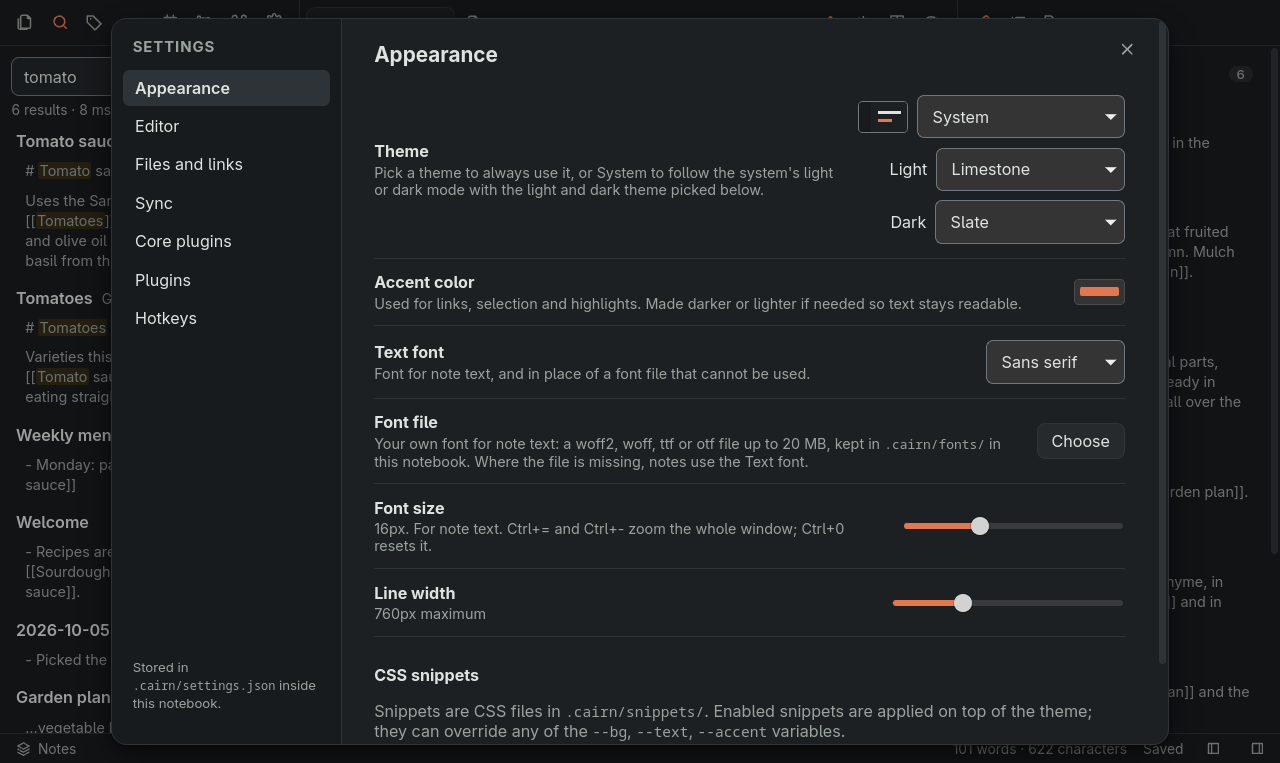
Under Settings, then Appearance, the Theme list holds System and every theme: pick a theme to use it always, or System to follow the system's light or dark mode with the light and dark theme picked under it.
The high-contrast themes keep all text at 7:1 or more (WCAG AAA), except on disabled buttons and a file tree row while it is dragged, and add a ring or bar in the accent color to selected rows, pressed panel buttons and focused controls, so these do not show by a tint alone.
Older versions show Limestone or Slate in a notebook set to a theme they do not have, and keep the choice.
Colors and fonts
Settings, then Appearance, also has an accent color, a text font, your own CSS snippets, and a font file of your own for note text (woff2, woff, ttf or otf, up to 20 MB). CSS snippets live in .cairn/snippets/ and the font file in .cairn/fonts/, inside the notebook folder. Cairn sync does not copy them, so on another device pick the font file again under Settings, then Appearance, then Font file.
Zoom and font size
On the desktop, Ctrl+= and Ctrl+- zoom the whole window and Ctrl+0 resets it (on Linux, only on layouts where that key types 0, so not on AZERTY). The Font size setting changes only the note text.